You have done your PHP2Shell update, or your host says it has. That is the right first step. But an update only closes the door. It does not check whether anyone got in before it closed.
This guide explains what to do after a PHP2Shell update, in plain English. There are four steps: make sure the fix is really working, look for warning signs, change your passwords and keys, and close the gaps the update leaves.
Have not checked your site yet? Start with how to check if your website is affected by PHP2Shell.
Why a PHP2Shell Patch Does Not Mean Your Site Is Safe
PHP is the software that runs many websites behind the scenes, including WordPress and WooCommerce sites.
PHP2Shell is the name for two serious flaws in PHP (CVE-2026-109618 and CVE-2026-109619). Both are rated 9.2 out of 10. In simple terms, they can let a stranger run their own code on your web server without a password.
PHP released fixed versions on 21 October 2026: 8.5.12, 8.4.27, 8.3.36 and 8.2.35. You can see them in the official PHP security advisory.
Every version from PHP 5.4 up to 8.5.11 is affected, according to Google Cloud. So if your site uses PHP, treat it as affected until you have confirmed the fix.
A Patch Stops New Attacks, Not Old Access
Being PHP2Shell patched is essential, but it is only half the job. Think of a patch like replacing a broken lock. The new lock keeps new intruders out. It does nothing about someone already inside, or someone who copied a key.
That copied key could be:
•a hidden file left on your server
•an admin account you did not create
•a password or key taken while the flaw was open
Security experts agree. A Forrester analyst told TechTarget that a fix does not necessarily remove access an attacker already set up. The same report says Palo Alto Networks found over 22.6 million systems that may be exposed.
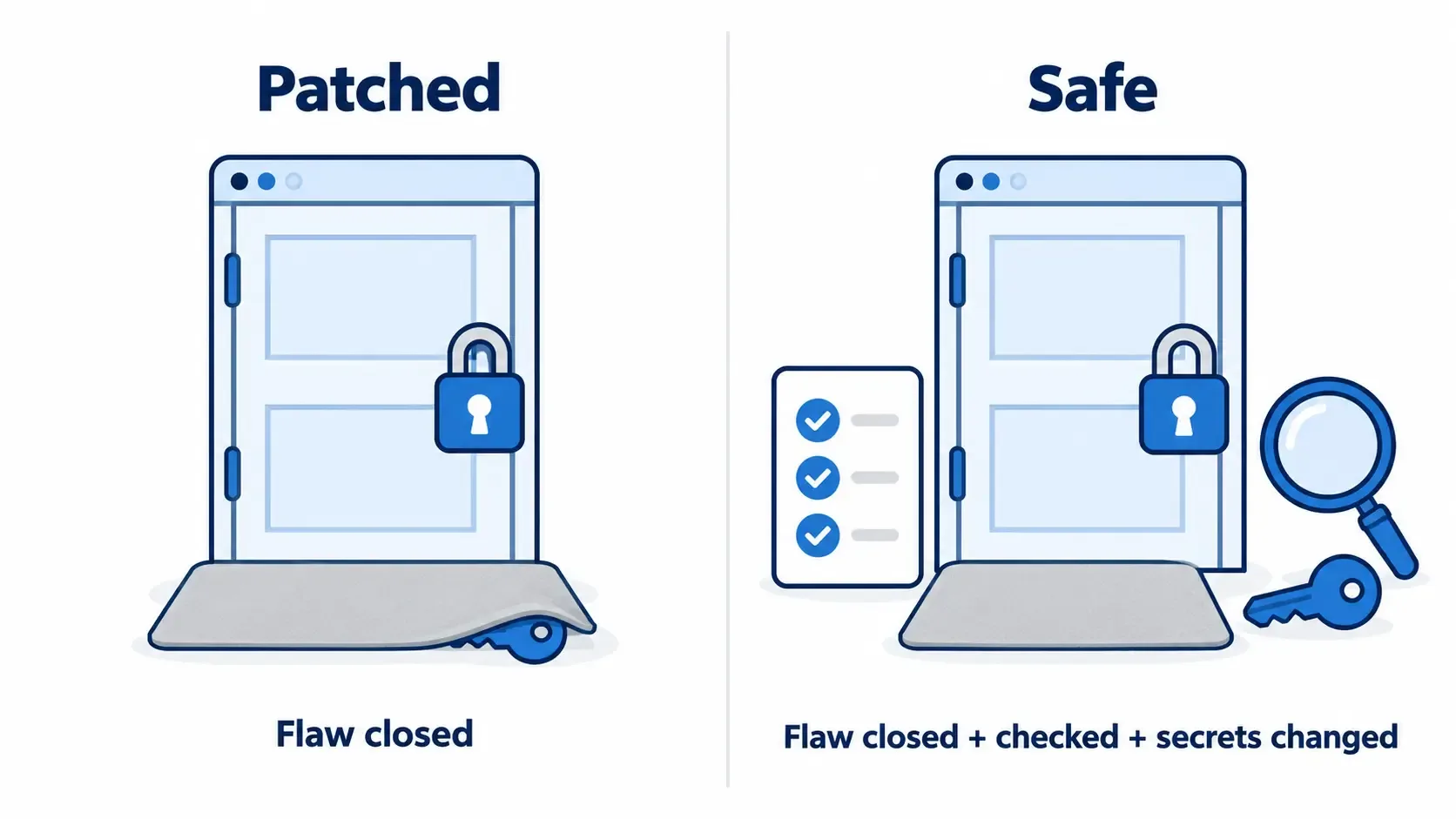
Patched means the flaw is closed. Safe means you have also checked for anything left behind.
Attacks Started Before the Fix
Attackers did not wait for the fix. Amazon spotted an attack attempt on 17 October 2026, four days before the flaws were made public, as its security team reports. Amazon adds that no settings change fully fixes both flaws. Only updating PHP does.
On 26 October, the US cyber security agency (CISA) confirmed attackers are now actively using these flaws, as BleepingComputer reported.
PHP2Shell reached the UK too. The UK's National Cyber Security Centre issued an NCSC alert urging organisations to act immediately. Some council websites and the Metropolitan Police site then went offline, according to Insurance Business UK.
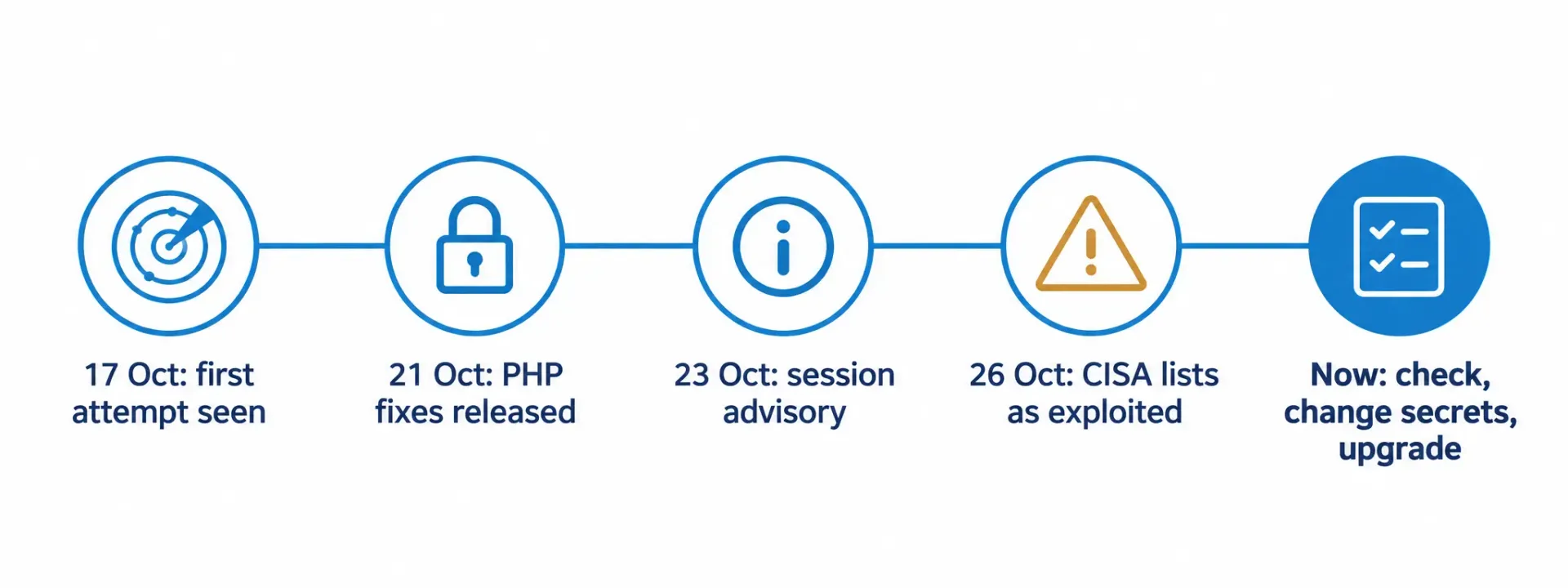
Why the dates matter: attacks started before the fix, so checks should start from 17 October.
What this means for you: if your site ran an older PHP version at any time from 17 October, it is worth checking.
What an Attacker Could Have Seen
These flaws can also let attackers read parts of the server's memory. This is the short-term memory PHP uses while it runs your site.
According to IONOS, that memory can hold database passwords, login sessions and API keys. API keys are the codes that connect your site to services such as payments or email.
You cannot easily tell what was in memory at the time. So the safe choice is to treat these details as possibly seen, and change them (Step 3).
Step 1: Confirm the Patch Is Really Running
Check the PHP Your Website Uses, Not Your Terminal
A server can have more than one copy of PHP. Your developer may see an updated version in the server's command line, while your website still runs an older one.
So check the version your website actually uses:
•WordPress: go to Tools → Site Health → Info → Server.
•Hosting control panel (such as cPanel or Plesk): look for "PHP version" or "PHP selector".
•Your host: ask by email which PHP version runs your site, and when it was updated.
•Quick outside check: try our free PHP version checker.
Do not worry if the number looks old. Some Linux systems add the fix without changing the version number. Here is why your PHP version number can lie.
Please do not upload a "phpinfo" test page to check. It shows details attackers find useful, and it is easy to forget to delete.
For your developer: one read-only check
On Debian or Ubuntu, search the package changelog for both flaws. Swap 8.3 for your version.
apt changelog php8.3-fpm | grep -E "CVE-2026-109618|CVE-2026-109619"
If both appear, the installed package includes the fix. It still needs a restart to take effect.
Restart PHP After Updating
Updating PHP is like a phone update that only works after a restart. The old version keeps running in memory until PHP is restarted.
Depending on how your server is set up, that means restarting PHP-FPM, Apache, FrankenPHP or LiteSpeed. Your host or developer will know which one.
•Ask them: "Was PHP restarted after the update, and when?"
•If nobody can confirm it, ask for a restart now.
Step 2: Look for Warning Signs
Wondering "was my website hacked through PHP2Shell?" This step helps. These are warning signs, not proof. Many have harmless causes.
Look back to 17 October, the date of the first known attack attempt. Amazon advises starting from that date, not from when the flaws were announced.
Here are common PHP2Shell signs of compromise, and who can check each one:
Warning sign | Who checks | Where to look |
Admin users you did not create | You | WordPress → Users |
Unknown .php files | You or developer | File manager |
Uploads to pages with no upload form | Host | Access logs |
Repeated "memory exhausted" errors | Host | PHP error log |
PHP crashes (segmentation faults) | Host | Server error log |
Very long session cookies | Host | Access logs |
PHP starting shell or download tools | Host or specialist | Server monitoring |
If you find something:
•Take a screenshot or write it down.
•Do not delete it yet.
•Tell your host or developer, and share what you found.
A good security scanner can help spot unknown files. But no WordPress plugin can fix PHP itself. So avoid any "fix" plugin or code copied from the internet, as MalCare advises.
Step 3: Change Passwords, Keys and Secrets
"Secrets" simply means anything that unlocks your site or its services: passwords, keys and access codes. Because the flaws may have exposed some of them, it makes sense to replace them.
Two simple rules:
• Change them after PHP is updated, not before. Otherwise, the new ones could leak too.
• Use a different, clean device if you think your site was attacked.
What to change | Examples |
Website logins | WordPress admins, editors, shop managers |
Hosting account | Host login, cPanel or Plesk |
Database password | Stored in wp-config.php |
WordPress security keys | Keys and salts |
API keys | Payments, email, CRM, maps |
Server logins | SFTP passwords, SSH keys |
Email accounts | Mailboxes your site sends from |
A few tips:
• When the database password changes, update wp-config.php at the same time. Otherwise, your site may stop loading.
• Changing WordPress security keys signs everyone out. That is normal.
• Turn on two-factor login (a code from your phone) wherever you can.
• Watch out for scam emails. IONOS warns fraudsters are using the PHP2Shell news to steal logins. Always log in through your host's website, not a link in an email.
Step 4: Close the Gaps a Patch Does Not Cover
The Separate Session Issue (CVE-2026-115560)
On 23 October, PHP warned about a second, separate issue. It is lower risk and only affects sites with an unusual mix of settings and code.
There is no full fix yet. Until PHP's next regular update, it suggests switching off a feature called "session upload progress". If this was already done for PHP2Shell, nothing more is needed.
Ask your host or developer to:
• set session.upload_progress.enabled=0
• check nothing on your site relies on upload progress bars
PHP 8.1, 8.0 and 7.4 and the PHP 8.2 Deadline
Older PHP versions stop getting security fixes. That matters a lot right now.
PHP version | PHP2Shell fix | Support |
8.5 | 8.5.12 | Supported |
8.4 | 8.4.27 | Supported |
8.3 | 8.3.36 | Supported |
8.2 | 8.2.35 | Ends 31 Dec 2026 |
8.1 and older | No official fix | Ended |
• On PHP 8.1 or older? There is no official PHP2Shell update. PHP only shared basic code fixes for teams that build PHP themselves. For most businesses, the answer is to upgrade.
• On PHP 8.2? Version 8.2.35 is fixed, but support ends on 31 December 2026. If you upgrade now, move to 8.3 or newer, so you only do the work once.
Before you upgrade:
• Test on a copy of your site first, not the live one.
• Check plugins, themes, forms and checkout still work.
• Take a full backup, and agree how to switch back if something breaks.
We offer PHP upgrade and compatibility testing. For budgeting, see our guide to web development costs in the UK.
Build a Simple Patch Routine
PHP2Shell will not be the last urgent update. A simple routine is the best PHP security after a patch.
• List where PHP runs. Include your main site, test sites, old microsites and any products with PHP built in. The NCSC alert advises this.
• Get alerts. Follow PHP news and your host's status page. The NCSC alert also points to its Early Warning service.
• Act fast. For critical flaws, Amazon suggests measuring update times in hours, not days.
• Keep a dated record. Insurers may ask how quickly you patched, Insurance Business UK reports.
• Check monthly. Review PHP, WordPress, plugins and themes.
• Keep backups. Store at least one copy away from your server, and test it.
Want help with this? See our server patching and DevOps support.
Why a Patch Alone Does Not Protect Your Search Visibility
If an attacker added spam pages, hidden links or redirects, updating PHP leaves them in place. A compromised site can lose visitors' trust, show browser warnings or be flagged by Google.
Quick checks:
• Look in Google Search Console for any security messages.
• Search Google for site:yourdomain.co.uk and look for pages you did not create.
• Check your sitemap and redirects for links you do not recognise.
If something looks wrong, our technical SEO support can help you review and fix it.
What to Do If You Think Your Site Was Hit
Stay calm. A warning sign is a reason to check, not a reason to panic. Follow these steps in order:
1. Contact your host. Ask them to keep server logs, ideally from 17 October onwards.
2. Keep the evidence. Do not delete odd files or accounts until someone has recorded them.
3. Take an offline backup of the site as it is now. Keep it separate from your clean backups.
4. Get expert help. The NCSC lists assured cyber incident response providers. Ideally, involve them before you clean up.
5. Clean up and update. Restore clean files. IONOS suggests a backup from before early October 2026. Then confirm the updated PHP is running and was restarted.
6. Change passwords and keys once the site is clean, using a clean device (see Step 3).
7. Tell affected users if their data may be involved. Consider legal or data protection advice where personal data may be involved.
If you have cyber insurance, check your policy and contact your insurer early.
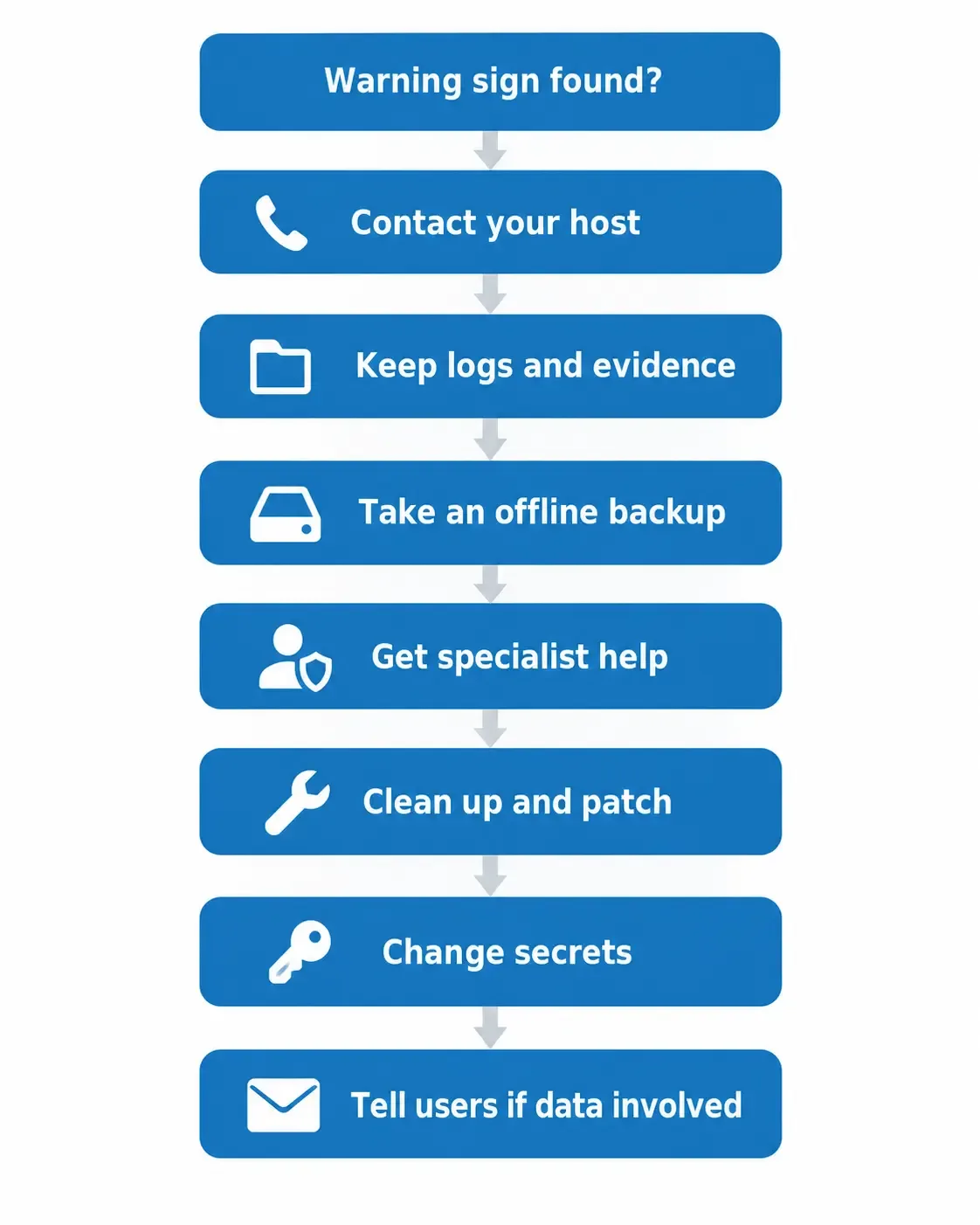
If you think you were hit: keep the evidence first, then fix and recover
After-Update Checklist
Task | Who |
Check the PHP version your live site uses | You or host |
Confirm PHP was restarted after the update | Host or developer |
Check logs from 17 October for warning signs | Host or developer |
Look for unknown files and admin users | You or developer |
Change passwords, keys and salts | You and developer |
Turn on two-factor login | You |
Confirm the session upload progress setting | Host or developer |
Plan the move off PHP 8.2 or older | Developer |
Check Search Console for security messages | You or SEO team |
Write down the date of each step | You |
When to Call a Specialist
Get expert help if:
• you cannot confirm which PHP version your site uses
• nobody can confirm PHP was restarted
• you found a warning sign
• your site runs PHP 8.1 or older
• you take payments or store customer data
GSS Tech Solutions is Cyber Essentials Plus and ISO 27001 certified. We can help you confirm the update, check for warning signs, change passwords and keys safely, and plan a tested PHP upgrade. If an attack is confirmed, an NCSC-assured incident response provider is the right first call.
Start with our free PHP version checker. Then call (+44) 203-599-8122 or talk to our team.
PHP2Shell FAQs
Is my site safe after the PHP update?
The update closes the flaws, but it may not remove access someone gained before you updated. Your site is in a much better place once you confirm the fix is working, check for warning signs and change your passwords and keys. No single step can promise complete safety.
Does updating WordPress fix PHP2Shell?
No. PHP2Shell is a flaw in PHP, the software your server runs, not in WordPress. Keeping WordPress, plugins and themes updated is still a good habit, but only a PHP update fixes this issue.
How do I know if my website was hacked?
You may not know for sure without a proper check. Warning signs include unknown .php files, admin accounts you did not create and odd uploads in your logs. If you spot any, ask your host or a specialist to look before you delete anything.
Do I need to change my passwords?
Yes, if your site ran an affected PHP version, it is a sensible step. The flaws can let attackers read server memory, which may hold passwords and keys. Change them after the update is confirmed, not before.
Is PHP 8.2 still safe to use?
PHP 8.2.35 includes the PHP2Shell fix, so an updated 8.2 site is covered for this issue. But security support for PHP 8.2 ends on 31 December 2026. Plan your move to PHP 8.3 or newer now.
Can a firewall replace patching?
No. A firewall can block some attack traffic, but it cannot always tell these attacks apart from normal visits. Amazon also says no settings change fully fixes both flaws, so updating PHP is the only complete fix.
Final Words
A PHP2Shell update is the right first move, but it is not the finish line. Check the fix is working, look for warning signs, change your passwords and keys, and plan your next upgrade.
Most sites will find nothing wrong. Checking is how you know. If you would like a second pair of eyes, we are happy to help.